LK Systems LK Group LK Pro login English
Close

LK Group

Quick installation guide to LK Arc Room Temperature Control

Get started with your LK Arc system quickly and easily with this step-by-step guide.

LK-Arc

Step 1: What you need before installing LK Arc Room Temperature Control

To install your LK Arc system efficiently, ensure you have:

  • A smartphone with NFC (tap-to-pay) running with the latest version of Android or iOS (as specified in the app's system requirements).
  • Font and text size on the mobile set to default.
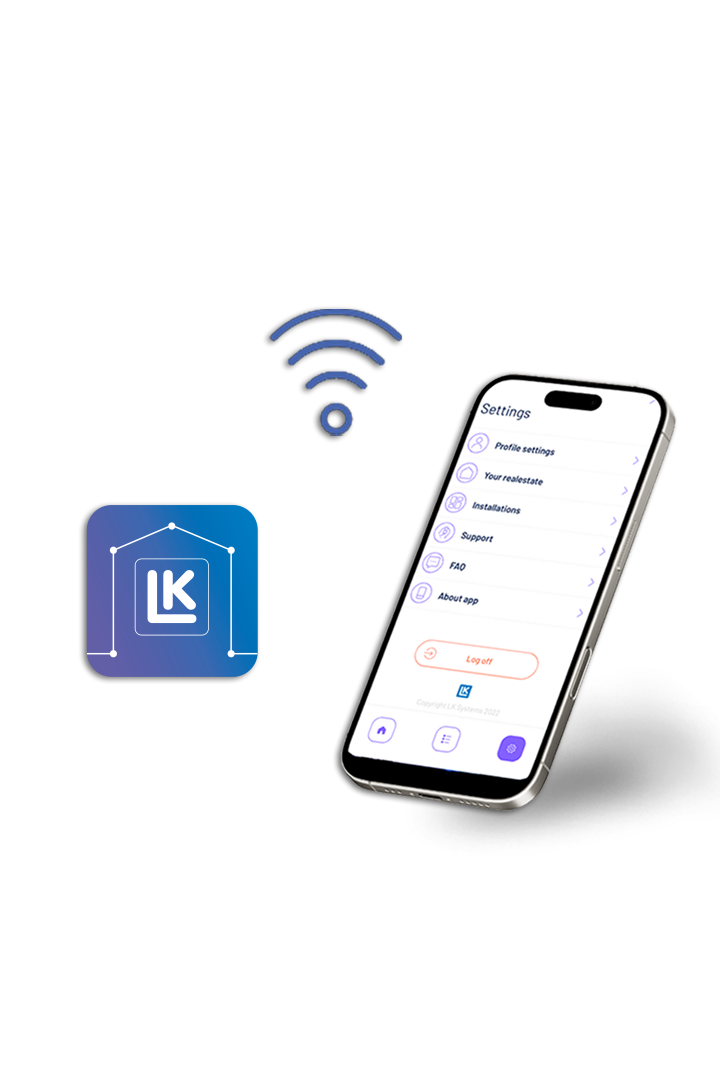
  • The MyLK app installed (available on the App Store and Google Play).
  • A registered account in the MyLK app.
  • 4 GHz Wi-Fi without any special characters or any special Scandinavian (or other) letters like å, ä, ö, é, ü etc., spaces, or quotation marks (’ ”) in the network name or password.
  • Network cable (for wired ArcHub setup).
  • LK ArcByWire (if thermostats are connected via cable).
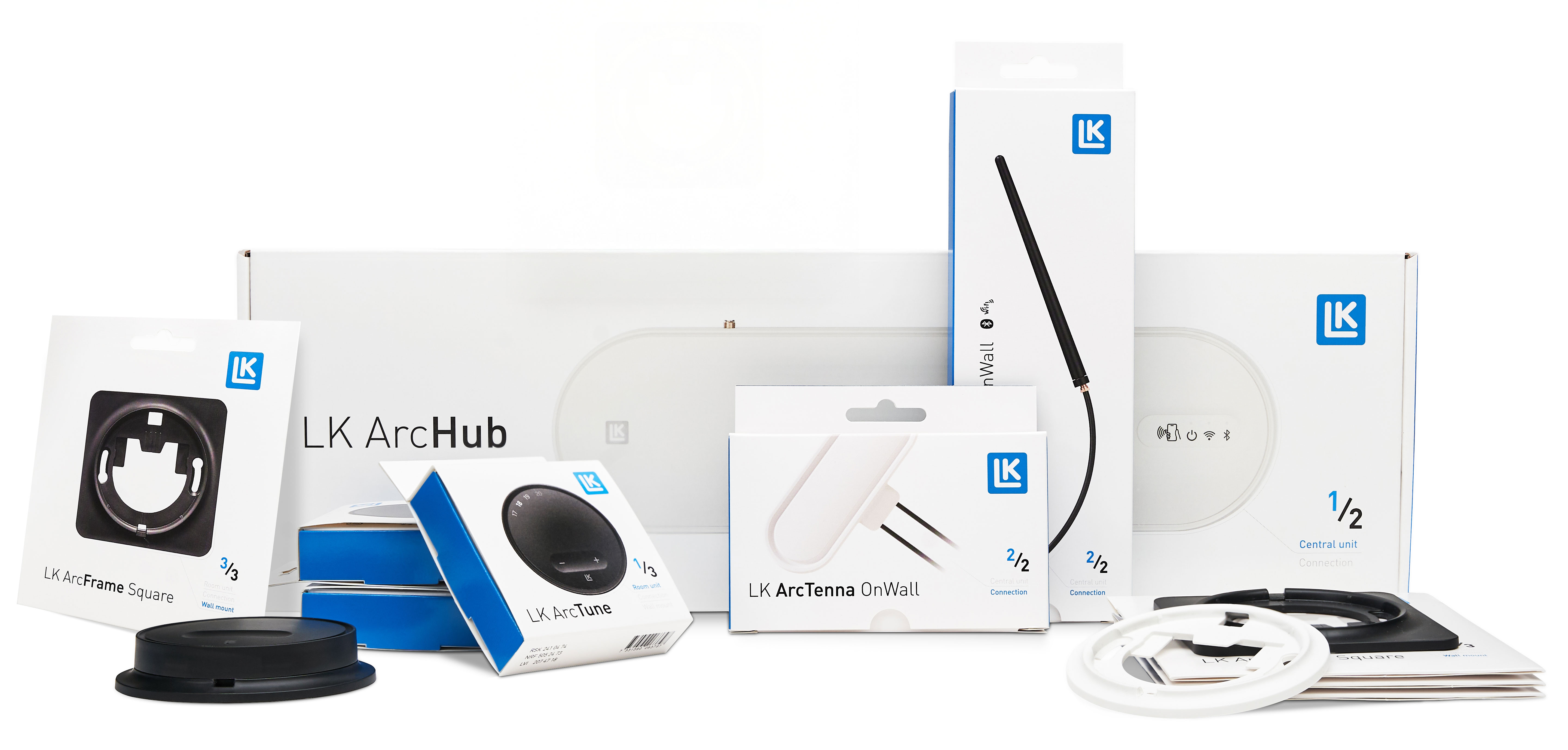
  • Wi-Fi and Bluetooth antennas (if ArcHub and thermostats are connected wirelessly). ⚠️Note: Two ArcTenna Inwall antennas are required!
  • Two batteries per thermostat (for wireless connection).
  • For more detailed installation instructions, scan the QR code on the product packaging.

💡 Pro Tip:

If there’s no internet in the building, use your phone’s mobile hotspot. Ensure 2.4 GHz Wi-Fi is enabled.
On iPhone, enable “Maximize Compatibility” in Settings. Activate “Allow Others to Join”.
On Android, follow the instructions from Google’s Help Center.

Step 2: ArcHub installation

Wired installation:

Connect the network cable and bus cables to the thermostat.

Wireless installation:

Attach the Wi-Fi and Bluetooth antennas (one of each required).

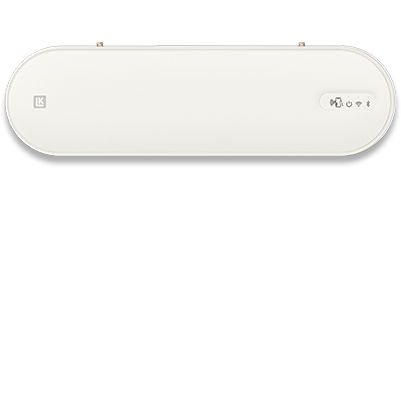
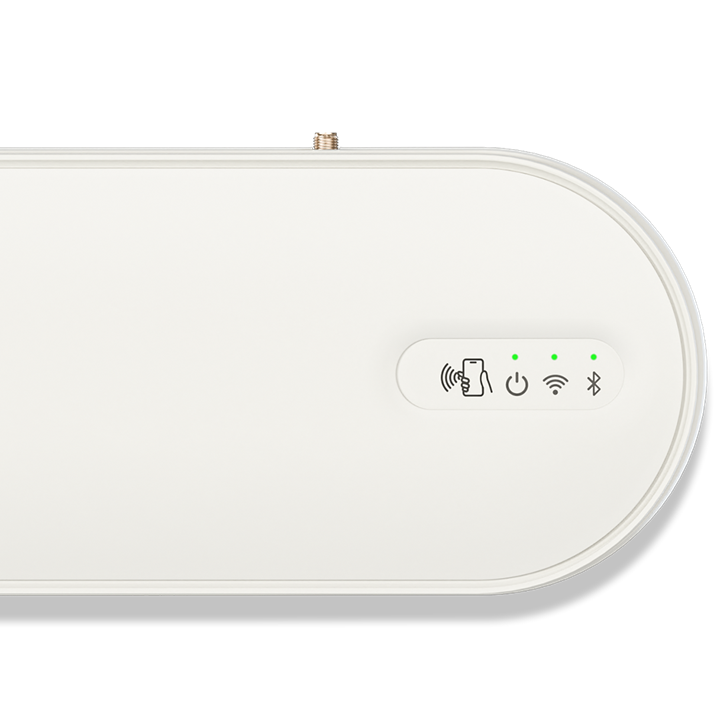
  • Plug in the ArcHub and wait until the power LED lights up green.
  • Open the MyLK app and choose “Start New Installation”.
  • Select ArcHub as the device type.
  • Register the property: the address must be real, the property name can be freely chosen, e.g., “Floor 1,” “Apartment A.”
  • When asked about installation mode:
    • Select “Installer” for professional use
    • Select “End User” for private installations (this option unlocks additional room icons)

Step 3: Pair your thermostats and actuators

⚠️ Make sure to pair all thermostats before completing the ArcHub setup in the app.

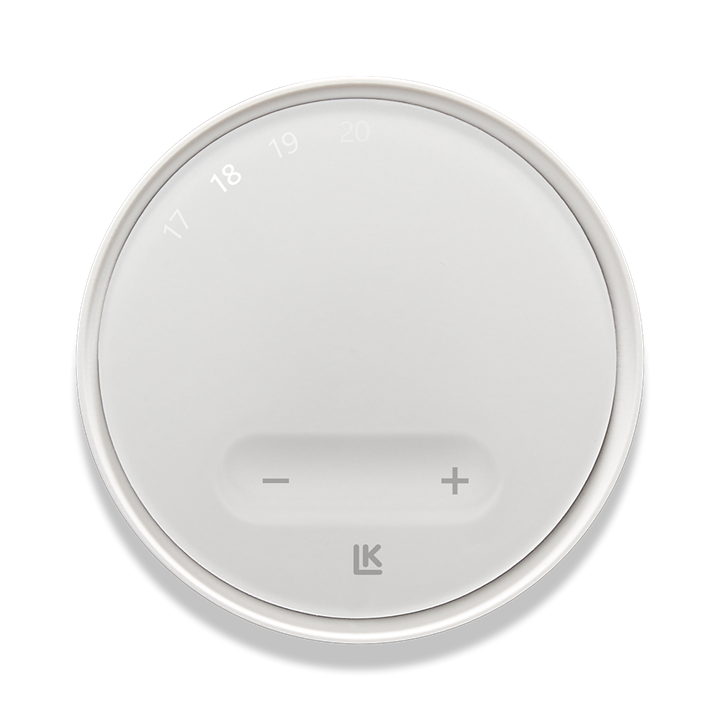
  • Insert two batteries into each wireless thermostat (if wireless).
  • Follow the step-by-step instructions in the app to pair the thermostats (all should be paired at this stage).
  • Carefully link each actuator in the app to the correct thermostat.
  • Confirm all devices are properly connected within the app.

Step 4: Final setup and system check

  • Review each step carefully in the MyLK app.
  • Thermostats and actuators will now automatically adjust according to your set preferences. ⚠️Note: Changes on a thermostat won’t trigger immediate actuator movement.
  • Confirm system functionality: when all three LEDs on the ArcHub turn green = the system is working correctly.

System Handover:

Click here for handover instructions.


Troubleshooting

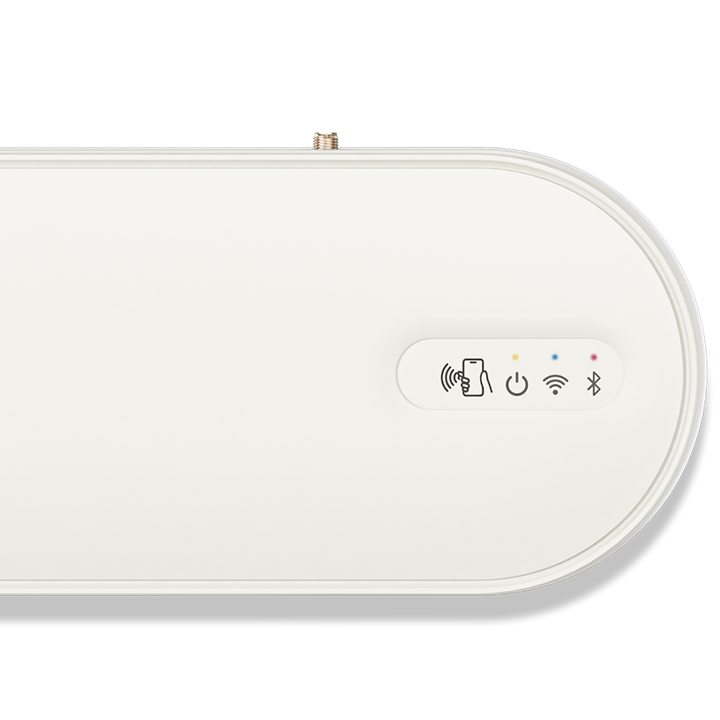
Power LED (left):

  • Yellow → actuator malfunction
  • Blinking blue → device rebooting
  • Alternating blue/pink → software update in progress


External Connection LED (middle):

  • Blinking green/turquoise → no internet connection.
  • Blinking green/red → no Wi-Fi/network connection.
  • Blinking green → internet and local network are available, ArcHub is trying to connect to LK’s cloud.
  • Blinking green/off → software error, update via USB required. Contact LK support.


Internal Connection LED (right):

  • Blinking blue → wireless thermostat not yet connected (can take up to 20 minutes)
  • Blinking yellow → wired thermostat not connected. Check all cables and connections.

❗ Important:

If issues arise after installation, do not delete anything from the app or reset the devices before contacting LK Support.

📧 Contact Support: eftermarknad@lksystems.se